 Till
Time left, as quiet bars.
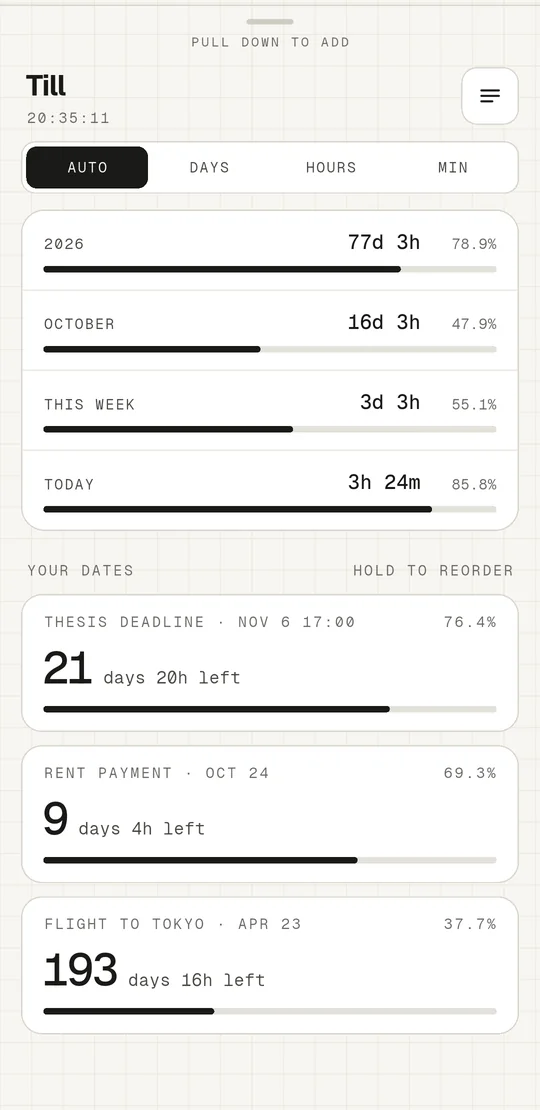
Till shows how much of this year, this month, this week and today is left, as simple progress bars on your Home Screen. Add your own dates below them, an exam, a trip, rent day, a birthday, and watch them come closer.
- Free
- No account
- No ads
- No tracking
A countdown widget that stays out of your way.
No charts, no streaks, no clutter. Just how much time is left, always up to date.
Year, month, week and day
Each gets a thin bar that fills as time passes, with the exact percentage and the time left.
Count down to your dates
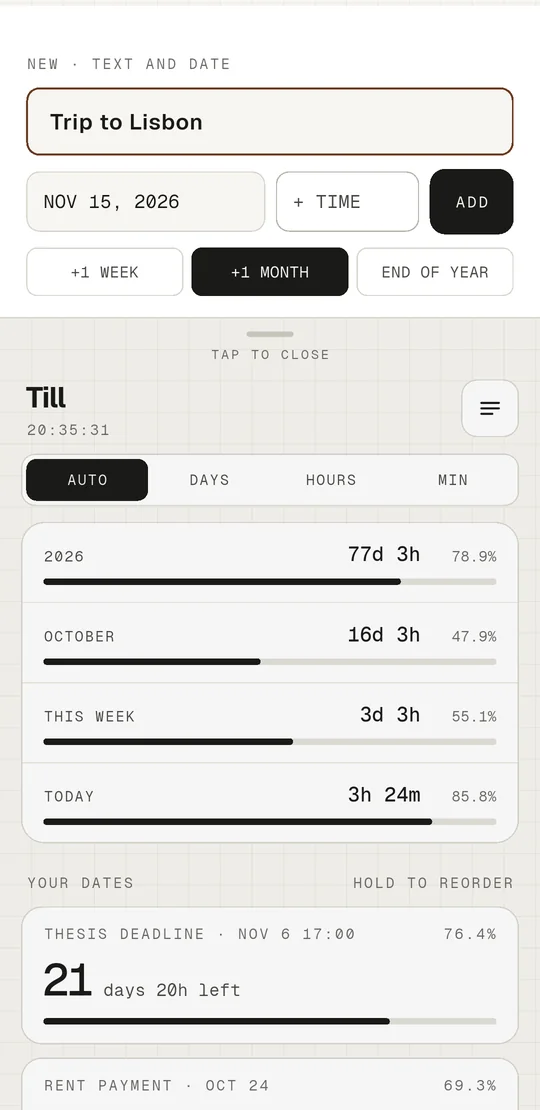
Pull down, type a name, pick a date, or tap a quick pick: a week, a month, the end of the year.
A widget you choose
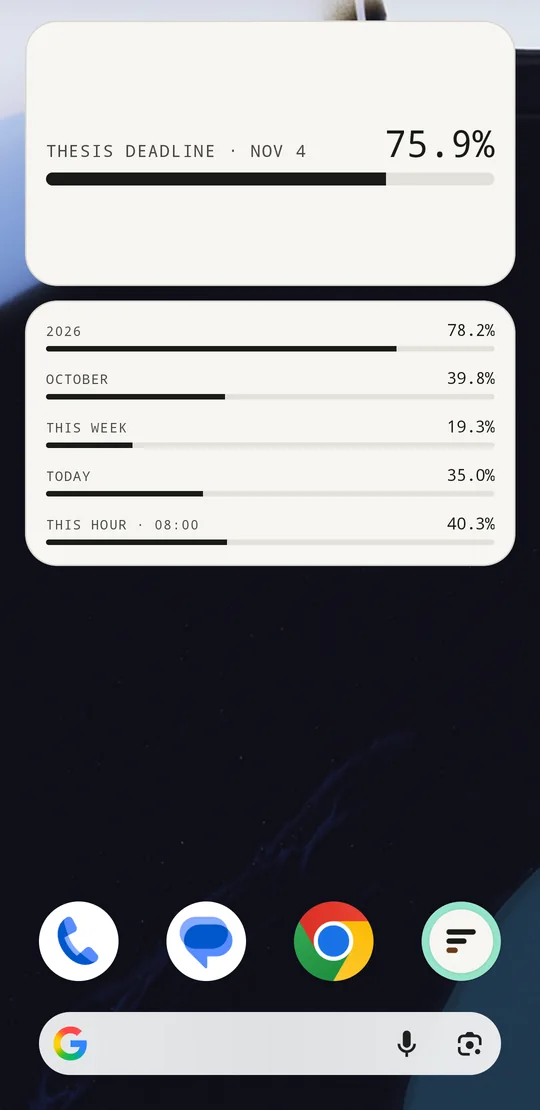
Three sizes for 2, 4 or 6 rows. Tap the widget to mix the built-in bars with your own dates.
Everything is one tap or one swipe away.
- Tap a row to edit it, set reminders or add it to your Home Screen.
- Swipe left to delete, with undo right there.
- Hold and drag to put your dates in order.
- One switch shows every row in days, hours or minutes.
- Gentle reminders a month, a week, a day or an hour before, and when the time comes.
- Past dates show as done, then tidy themselves away.
Private by design
No account and no sign-up. Your dates stay on your phone and never reach us. Read the privacy policy.
Free, nothing locked
No ads and no subscription. If Till helps you, you can leave a one-time tip from Settings.
Made slowly
Till is made by Slow Things, a small studio that also makes Letterbird.
Questions about Till
The widget
How do I add the widget on Android?
Open a date in Till and tap Add to Home Screen. Or hold an empty spot on your Home Screen, open Widgets and choose Till in 2, 4 or 6 rows.
How do I add the widget on iPhone?
Hold an empty spot on your Home Screen until the apps jiggle, tap Edit (or +), then Add Widget, and choose Till. Pick small, medium or large and tap Add Widget.
How do I choose what the widget shows?
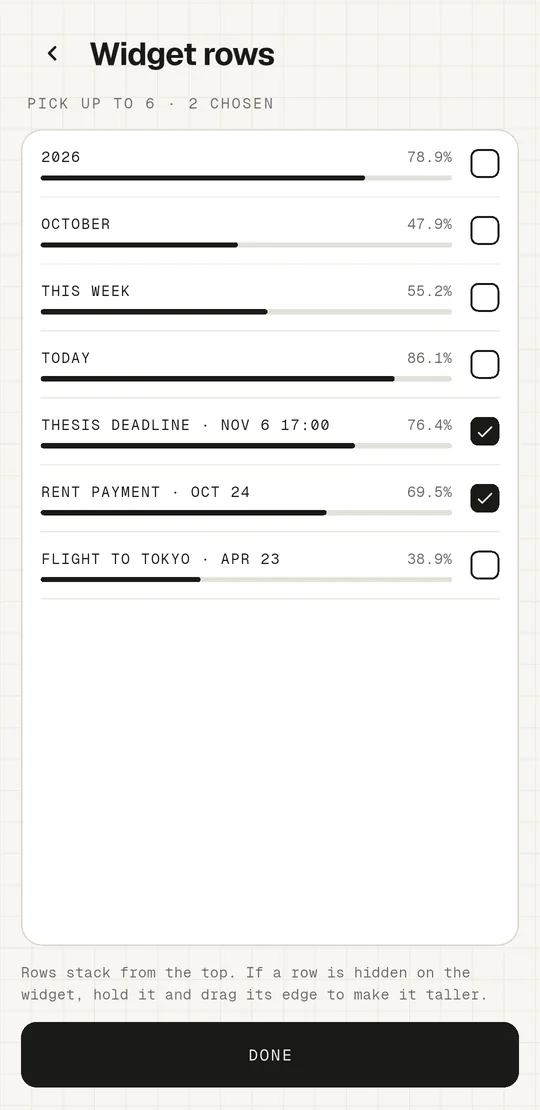
Tap the widget. Till opens on Widget rows: pick up to six rows from the year, month, week, day and your own dates, then tap Done. On iPhone you can also hold the widget and choose Edit Widget.
A row is missing on the widget
Rows stack from the top, and a small widget has room for fewer of them. On iPhone the small widget shows the first three; use medium or large for more. On Android, hold the widget and drag its edge to make it taller.
Why does the widget look out of date?
The widget refreshes itself through the day; your phone decides the exact moment to save battery. Opening Till always brings it up to date. On some Android phones (Xiaomi, Huawei, Oppo and others), allow Till to run in the background in the battery settings.
Dates and reminders
Add, edit, delete, reorder
Pull the list down to add a date. Tap a date to edit it or change its reminders. Swipe it left to delete it (you can undo right away). Hold and drag to change the order.
Reminders don't arrive
Check that notifications are on for Till: on Android in Settings › Apps › Till › Notifications, on iPhone in Settings › Notifications › Till. Focus or Do Not Disturb can also hold them back.
Days, hours or minutes
The switch at the top shows every row in the unit you pick. Auto chooses the clearest one for each row.
What happens to past dates?
A date that has passed shows as done for a day, then tidies itself away.
Your data and tips
Where are my dates kept?
Only on your phone. Till has no account and no server, so we can't see your dates and can't restore them. Deleting the app deletes them. More in the privacy policy.
Moving to a new phone
Your phone's own backup (Android backup or iCloud) may bring your dates along when you restore it.
Is Till free? What does a tip do?
Till is free, has no ads and nothing is locked. A tip in Settings › Support Till simply supports the next slow thing. Payments are handled by Google or Apple; for a refund, ask them through your purchase history.
Something not working? Write to hello@slowthings.studio. A real person reads every message, usually within two working days. Telling us your phone model helps.